Four corners
Press a corner lightly to mute, play, or skip a track, to open an app, link, or file, to press a key combination, or to run a shortcut. One corner can hold a different action for each number of presses.
 Trackpad Edges
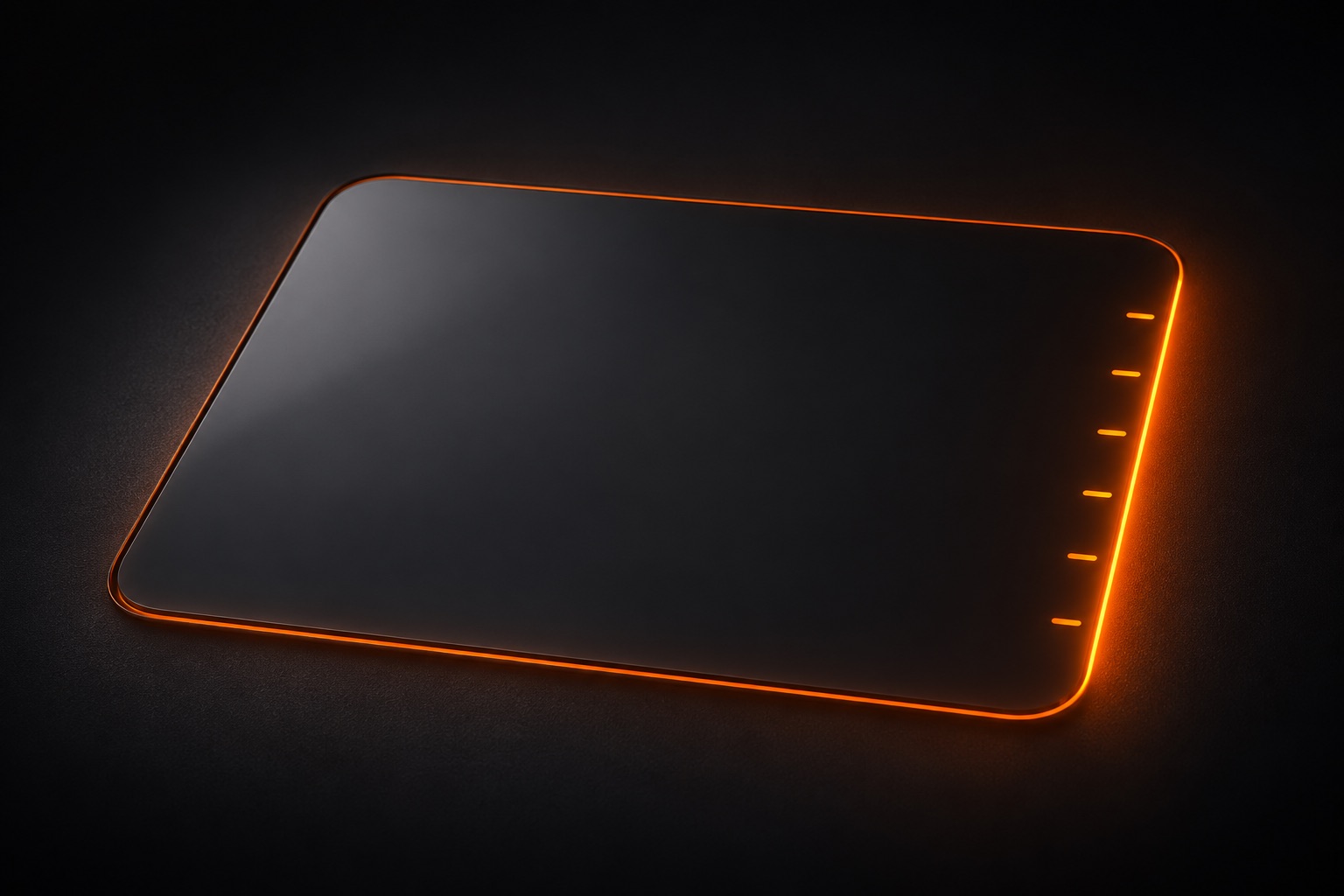
Slide along the side of your Mac's trackpad to change the volume, the brightness, or your place in a video, and feel a haptic tick on each step. Press a corner to run whatever you choose. The middle stays a normal trackpad.
Drag an orange edge, or use the arrow keys, to try it.
Give each edge any of these controls. They move in fixed steps, so a slide goes as far as you expect, and a tap on an edge changes nothing.
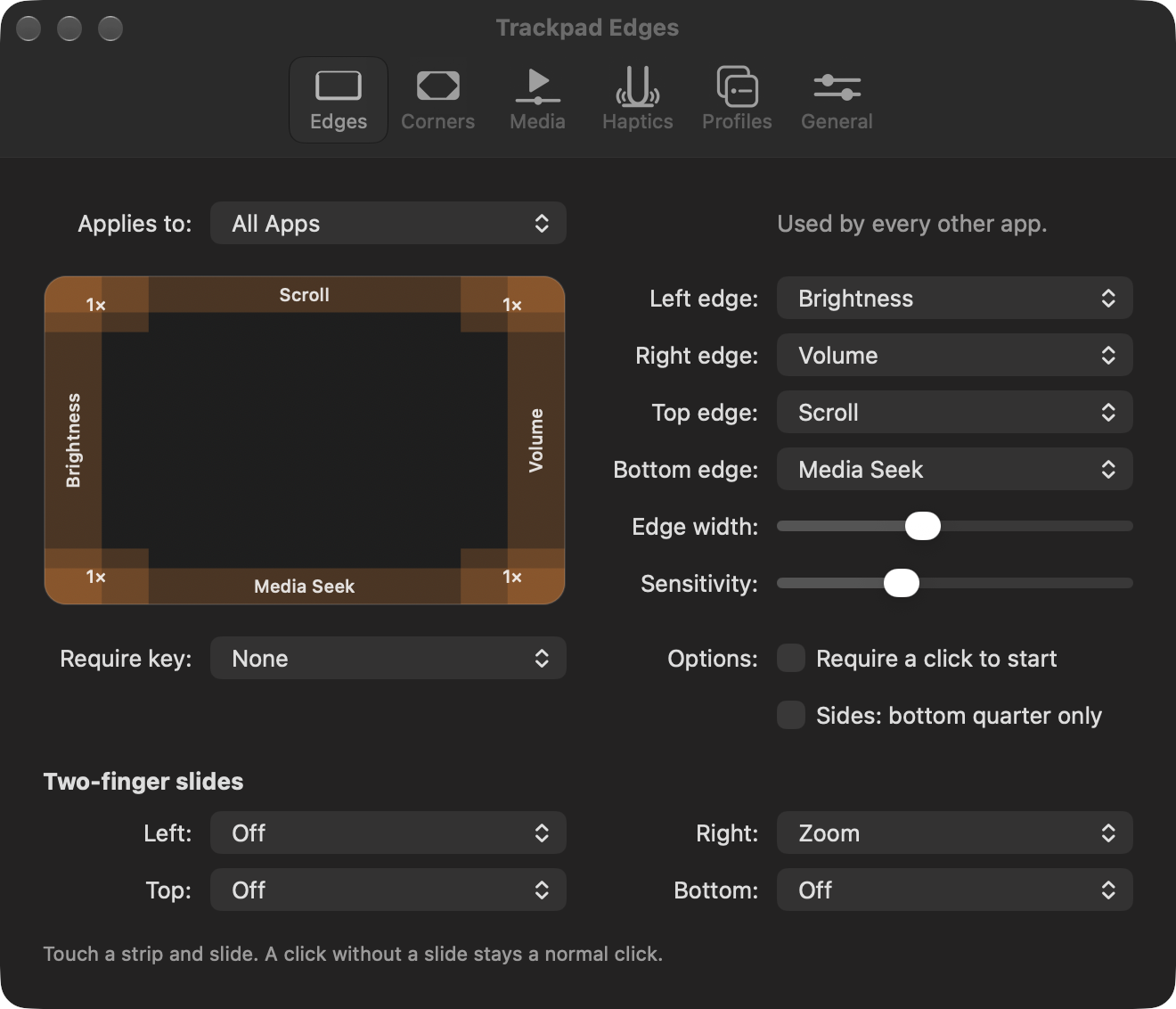
Your trackpad taps back as you slide, so you can change the volume without looking. Choose how strong the tick is, or turn it off.
Press a corner lightly to mute, play, or skip a track, to open an app, link, or file, to press a key combination, or to run a shortcut. One corner can hold a different action for each number of presses.
Give an edge a second job. One finger can change the volume, and two fingers can zoom.
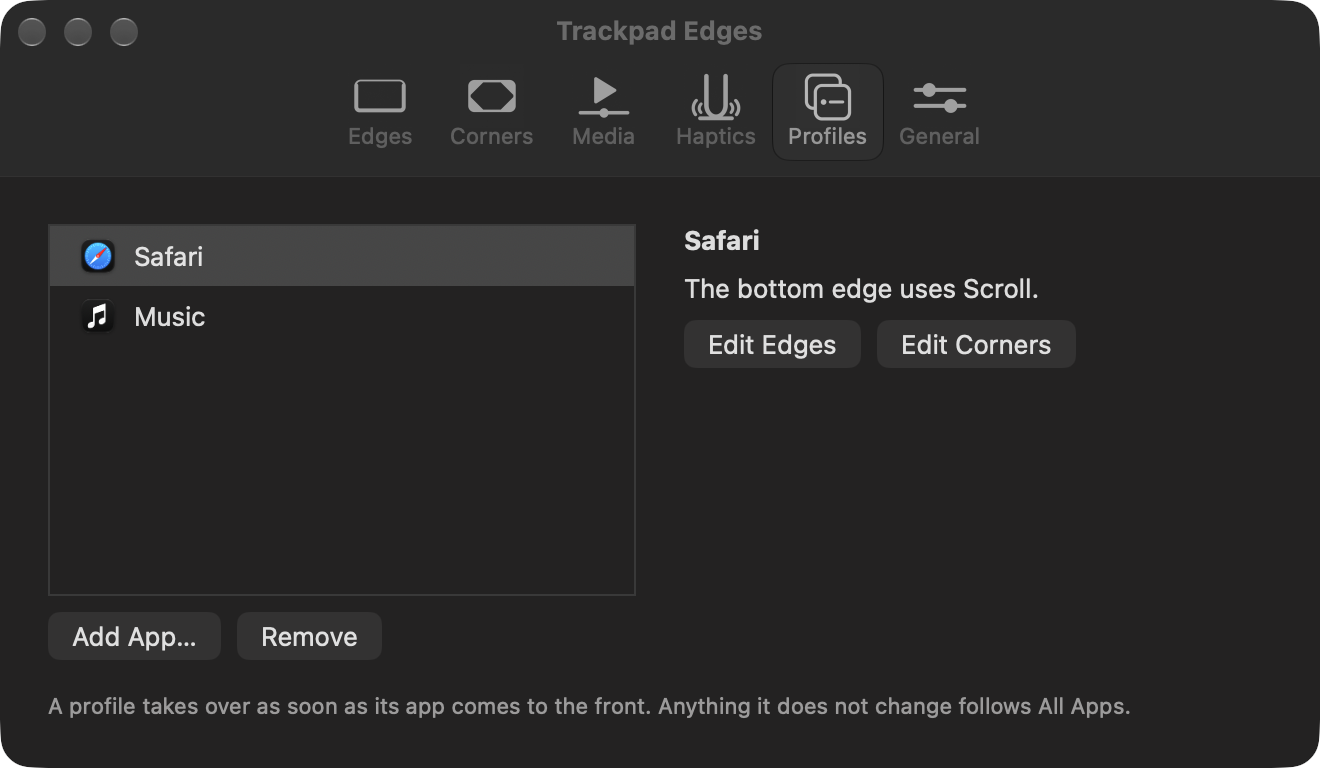
The bottom edge can seek in your video player and scroll in your browser. Each app changes only what you tell it to, and the rest follows your usual setup.
A short tour walks you through the permission and your first slide, and then helps you choose your edges, corners, and haptics. You can take it again at any time.
Needs a Mac with Apple silicon and a Force Touch trackpad, running macOS 27.2 or later. All testing so far has used built-in trackpads.